Close Menu

    Subscribe to Updates

    Get the latest creative news from FooBar about art, design and business.

    What's Hot

    Ben Stokes questions ECB’s decision to overlook Harry Brook for England Test captaincy

    August 4, 2026

    Google Store discounts Pixel 10 series ahead of Pixel 11 release

    August 4, 2026

    Elon Musk spends half his time talking robots and AI on Tesla earnings calls

    August 4, 2026
    Facebook X (Twitter) Instagram
    Select Language
    Facebook X (Twitter) Instagram
    NEWS ON CLICK
    Subscribe
    Tuesday, August 4
    • Home
      • United States
      • Canada
      • Spain
      • Mexico
    • Top Countries
      • Canada
      • Mexico
      • Spain
      • United States
    • Politics
    • Business
    • Entertainment
    • Fashion
    • Health
    • Science
    • Sports
    • Travel
    NEWS ON CLICK
    Home»Science & Technology»US Science & Tech»How To Sideload Android APKs On Your Chromebook
    US Science & Tech

    How To Sideload Android APKs On Your Chromebook

    News DeskBy News DeskAugust 2, 2026No Comments5 Mins Read
    Share Facebook Twitter Pinterest Copy Link LinkedIn Tumblr Email VKontakte Telegram
    How To Sideload Android APKs On Your Chromebook
    Share
    Facebook Twitter Pinterest Email Copy Link

    You’re not limited to only apps you can get on the Play Store.


    Nathan Ingraham for Engadget

    A Chromebook can be a pretty flexible device. You can use it for productivity, to play games, watch movies and so on. To do these things, you might download apps from the Google Play Store. Linux apps and progressive web apps are supported too.

    But maybe the experience you’re looking for isn’t available on the Play Store. Perhaps you haven’t seen a Linux app or progressive web app that does the trick. Instead, an Android app that you obtain from elsewhere on the internet may be the way to go. You may need to sideload this Android Package Kit (APK) onto your device, and we’re here to detail how to do that.

    Before we get into the details of sideloading an Android APK onto a Chromebook, note that you do this at your own risk. Google hasn’t verified apps that you obtain outside of the Play Store. For your own sake, carry out due diligence to determine as best as possible that the APK you want to use is legitimate and free of malware and other nastiness. We’ll leave it to you to find the APK(s) you want.

    There are several options for how to sideload an app onto a Chromebook. Enabling developer mode is one way to go. However, doing that will wipe all of the data on your system. Unless you’re setting things up on a brand-new Chromebook, you may not want to deal with that.

    Let’s go in the other direction, with Google’s official methods for sideloading APKs on Chromebook. These use Android Debug Bridge (ADB). Note that this approach only works from Chromebooks that hit the market after 2020. This method also requires you to have the APK on your Chromebook already. We suggest renaming the file to something simple before installing it.

    Using Android Debug Bridge to sideload apps on Chromebook

    The first step is to enable Linux on your Chromebook, if you haven’t already done so. Open the Settings app, click the “about ChromeOS” option on the left, scroll down to “Developers” and then click “set up” on the Linux development environment option. Then go through the brief setup process, which includes setting aside a dedicated portion of storage space for Linux (you can modify this allocation later via the system settings).

    Now you need to go through the same process until you get to “Linux development environment,” which now has its own sub-menu. From here, click on “Develop Android apps” then toggle “Enable ADB debugging” on. Your Chromebook will restart at this point, so make sure you save all your work and such first.

    After your system reboots, you should see a message that reads “This device may contain apps that haven’t been verified by Google.” Just like that, the first part of the process is sorted.

    We now have a couple of options to run the APK on your Chromebook. The first is by using Terminal. Here’s what to do:

    • Search for and open Terminal

    • Select the Penguin option

    • Install ADB, if you haven’t already done so, with this command: sudo apt install adb

    • If Terminal asks whether you want to continue, press the “Y” key

    • Next, input the following command: adb connect arc

    • To proceed, you’ll need to authorize USB debugging from the dialog box that pops up. Check the box that reads “Always allow from this computer” and click Allow

    • The last step is to install the APK. To do that, first move or copy it to your Linux Files folder

    • Input this command — adb install filename.apk — with the actual name of your APK in place of “filename.apk”

    • You should then be able to run the app you installed by searching for it in the Chrome OS launcher

    Using Android Studio to run sideloaded apps on Chromebook
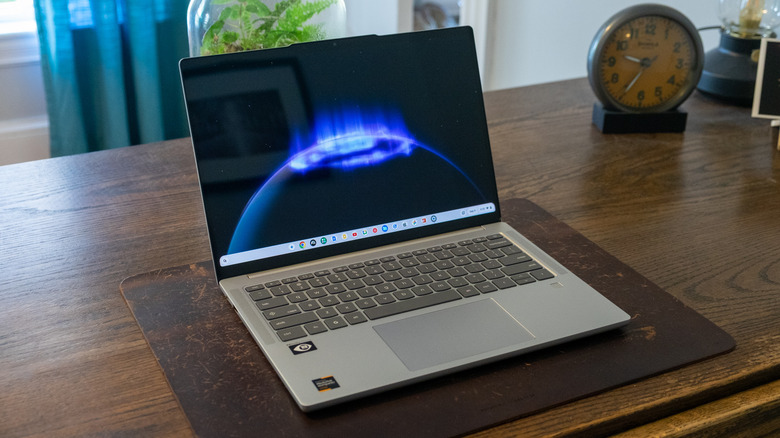

    An open laptop on a desk
    Nathan Ingraham for Engadget

    Alternatively, you can run the APK using an emulator in Android Studio. If you don’t already have Android Studio set up, go to the Files app > My files > Downloads and locate the DEB package. Move or copy this to Linux Files. Then, in the Linux terminal, run the command “sudo apt install ./android-studio-panda2-cros.deb.” (Note that the filename for the DEB package might be slightly different, so make sure to account for that.)

    After you open Android Studio, you can create an Android Virtual Device. This simulates an Android phone, tablet, Wear OS, Android TV or Automotive OS device. It’s up to you which you’d rather go with, though tablet and Android TV offer landscape formats.

    All you need to do after that is drag and drop the APK onto the emulator screen. After the app is installed (an APK Installer box will pop up to indicate that’s happening), you can access it from your apps list.

    Share. Facebook Twitter Pinterest LinkedIn Tumblr Email Telegram Copy Link
    News Desk
    • Website

    News Desk is the dedicated editorial force behind News On Click. Comprised of experienced journalists, writers, and editors, our team is united by a shared passion for delivering high-quality, credible news to a global audience.

    Related Posts

    US Science & Tech

    Elon Musk spends half his time talking robots and AI on Tesla earnings calls

    August 4, 2026
    US Science & Tech

    New Samsung TVs Will Support HDR10+ Advanced Streaming On Prime Video Starting This Month

    August 4, 2026
    US Science & Tech

    India moves to give its instant payments network a business model

    August 4, 2026
    US Science & Tech

    Here’s How To Watch The Nintendo Direct For Fire Emblem: Fortune’s Weave

    August 4, 2026
    US Science & Tech

    Bending Spoons to buy Airtable for $1.28B

    August 4, 2026
    US Science & Tech

    Apple Is Working On A Seamless Copy-Paste Experience Between iPhones And Windows PCs

    August 4, 2026
    Add A Comment
    Leave A Reply Cancel Reply

    Don't Miss

    Ben Stokes questions ECB’s decision to overlook Harry Brook for England Test captaincy

    News DeskAugust 4, 20260

    England‘s Test team has entered a period of significant transition following the departures of Ben…

    Google Store discounts Pixel 10 series ahead of Pixel 11 release

    August 4, 2026

    Elon Musk spends half his time talking robots and AI on Tesla earnings calls

    August 4, 2026

    Trisha Paytas Slams Comments About Ariana Grande’s Body

    August 4, 2026
    Tech news by Newsonclick.com
    Top Posts

    SOUND FIST: KIRALY VIKTOR – SORRY NOT SORRY

    July 30, 2026

    Fan poll: 5 best Philly bands

    July 30, 2026

    Do Refried Beans Go Bad? Shelf Life and Storage

    July 30, 2026

    Insectasy Review (2026 Fantasia Film Festival)

    July 30, 2026
    Stay In Touch
    • Facebook
    • Twitter
    • Pinterest
    • Instagram
    • YouTube
    • Vimeo

    Subscribe to Updates

    Get the latest creative news from SmartMag about art & design.

    Editors Picks

    Ben Stokes questions ECB’s decision to overlook Harry Brook for England Test captaincy

    August 4, 2026

    Google Store discounts Pixel 10 series ahead of Pixel 11 release

    August 4, 2026

    Elon Musk spends half his time talking robots and AI on Tesla earnings calls

    August 4, 2026

    Trisha Paytas Slams Comments About Ariana Grande’s Body

    August 4, 2026
    About Us

    NewsOnClick.com is your reliable source for timely and accurate news. We are committed to delivering unbiased reporting across politics, sports, entertainment, technology, and more. Our mission is to keep you informed with credible, fact-checked content you can trust.

    We're social. Connect with us:

    Facebook X (Twitter) Instagram Pinterest YouTube
    Latest Posts

    Ben Stokes questions ECB’s decision to overlook Harry Brook for England Test captaincy

    August 4, 2026

    Google Store discounts Pixel 10 series ahead of Pixel 11 release

    August 4, 2026

    Elon Musk spends half his time talking robots and AI on Tesla earnings calls

    August 4, 2026

    Subscribe to Updates

    Get the latest creative news from FooBar about art, design and business.

    Facebook X (Twitter) Instagram Pinterest
    • About Us
    • Editorial Policy
    • Privacy Policy
    • Terms and Conditions
    • Disclaimer
    • Advertise
    • Contact Us
    © 2026 Newsonclick.com || Designed & Powered by ❤️ Trustmomentum.com.

    Type above and press Enter to search. Press Esc to cancel.